
CellTracksColab
Compile, visualise and analyse cell tracking data across fields of view, biological repeats and conditions.
Analysis
About
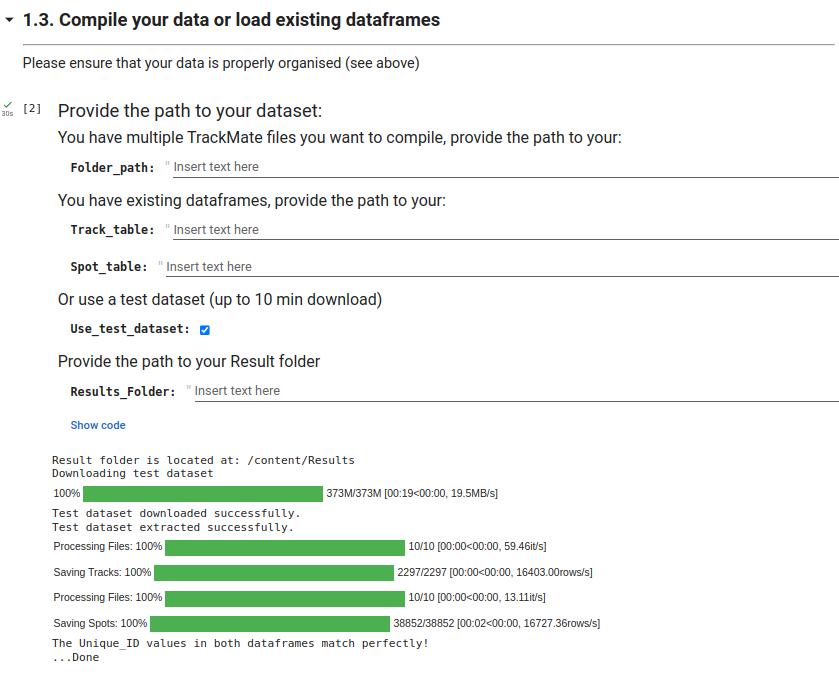
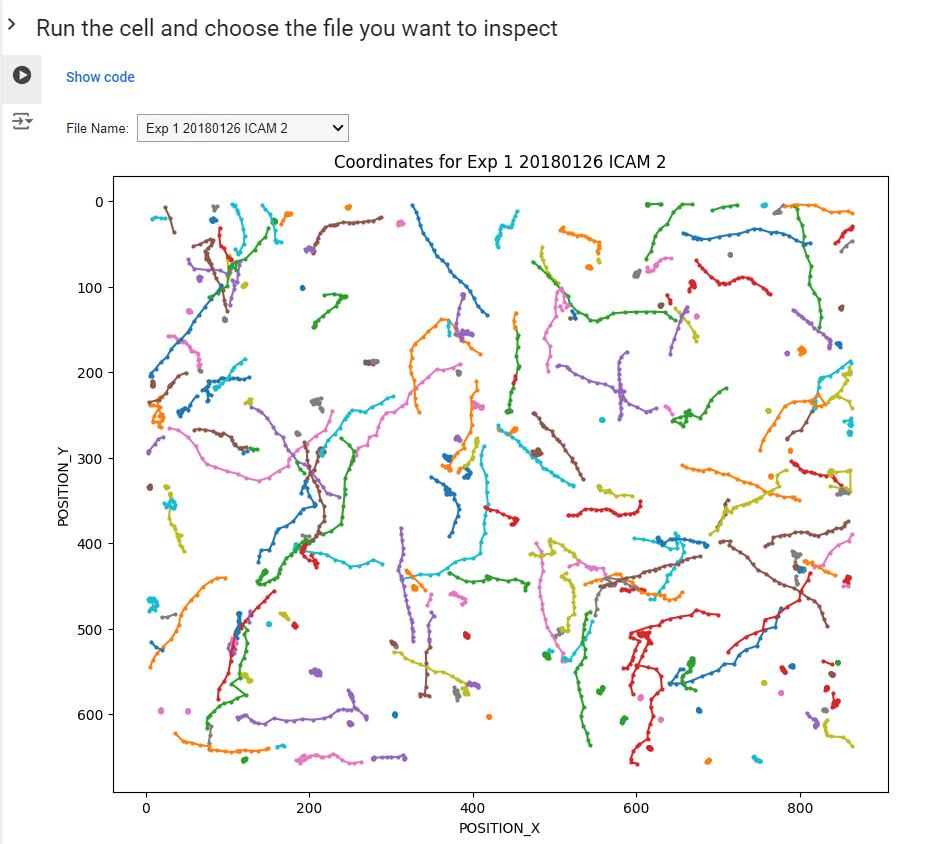
Import and compile cell tracking data from TrackMate (CSV or XML), multiwell plate exports, or other compatible CSV files. Explore trajectories and track metrics, filter tracks, and inspect variability across fields of view, biological repeats and conditions.
Separate notebooks visualise compiled data, explore movement phenotypes with UMAP, t-SNE and HDBSCAN, analyse spatial clustering with Ripley's L, and measure distances to regions of interest. Use the notebooks in Google Colab or through the desktop app.
Works with
The authors say it works with:
- TrackMate CSV (spots and tracks) or XML exports, organised by condition and biological repeat (TrackMate)
- TrackMate CSV exports from multiwell or plate-based experiments (TrackMate Plate)
- Compatible tracking CSV files from CellProfiler, Icy, ilastik or Fiji Manual Tracker; column mapping may be required (Custom)
- Compiled CellTracksColab spots and tracks tables (CSV or CSV.gz) for Viewer and advanced notebooks
- TIFF ROI masks matched to tracked fields of view for Distance to ROI
Produces
The authors say it produces:
- Compiled spot and track tables (CSV/CSV.gz), identified by field of view, biological repeat and condition
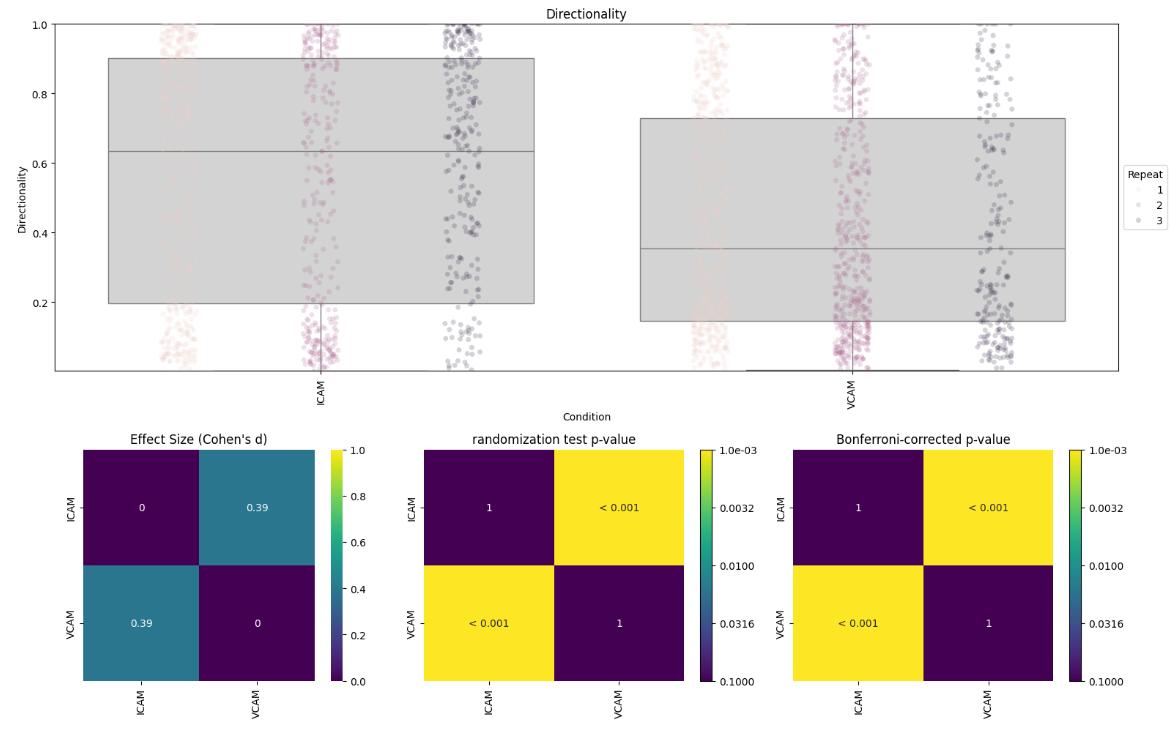
- Trajectory plots, track metrics (speed, directionality and more), quality-control plots and condition comparisons
- UMAP and t-SNE embeddings, HDBSCAN clusters and representative trajectories (Dimensionality Reduction)
- Ripley's L spatial clustering curves and Monte Carlo comparisons (Track Clustering)
- Distances from tracks to ROI masks, derived metrics and visual checks (Distance to ROI)
Get it on your computer
Install the app on your own computer: download the installer for your system, and the steps for that system open below the buttons. You do this once; installing needs an internet connection, because the installer downloads the app's Python packages.
v1.1.5 · 22 October 2026 · files come from github.com/CellMigrationLab/CellTracksColab/releases
Windows
Windows installer310.1 MB · .exeInstallers built with LabConstrictor are not code-signed yet, so Windows may warn you. Run files only from this app's GitHub release. See the Windows steps.
macOS
Apple Silicon (M1 or later)170.4 MB · .pkgIntel176.6 MB · .pkgNot sure which? Open the Apple menu, then About This Mac: Intel means Intel, M1 or later means Apple Silicon. If macOS refuses to open it, see the macOS steps.
Linux
Linux installer205.6 MB · .shNeeds a terminal. Run it with: bash <file name>. See the Linux steps.
These installers are for Windows, macOS and Linux computers. You can also open a notebook in your browser below.
How to install on Windows
- Download the
.exefile and double-click it. -
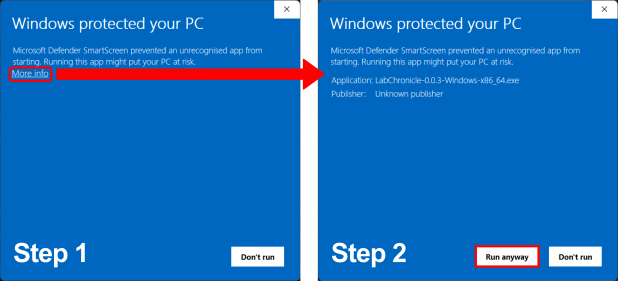
If Windows shows "Windows protected your PC", click "More info" and then "Run anyway". The installers are not code-signed yet.
-
Follow the on-screen prompts. Launch the app from the Start Menu or your desktop.
How to install on macOS
- Choose your file: open the Apple menu, then About This Mac. If the Chip or Processor says Intel, download the Intel installer; if it says M1, M2 or similar, download the Apple Silicon one.
- Double-click the
.pkgfile. If macOS refuses to open it, go to System Settings, Privacy & Security, scroll down to the message about the package and click "Open Anyway" (it appears only after you tried to open the file once). If you do not see it, try opening the file again, then check this page again. - Follow the prompts (we recommend "Install only for me"). Launch the app from your Applications folder.
How to install on Linux
- Download the
.shfile. - Open a terminal in the download folder and run
bashfollowed by the name of the file you downloaded, for example:bash MyApp-0.1.0-Linux-x86_64.sh - Follow the prompts, then launch the app from your applications menu.
All systems, with pictures: Install an app.
Notebooks to open in your browser
These run on Google's servers in Google Colab: you need an internet connection and a Google account, and any data you load into the notebook is handled by Google. The desktop app runs on your computer.
- TrackMate (CSV or XML)
 Open in ColabView on GitHub
- TrackMate Plate (multiwell CSV)Open in ColabView on GitHub
- Custom (other tracking CSV files)Open in ColabView on GitHub
- Viewer (compiled tracks)Open in ColabView on GitHub
- Dimensionality Reduction (UMAP, t-SNE)Open in ColabView on GitHub
- Track Clustering (Ripley's L)Open in ColabView on GitHub
- Distance to ROI (requires masks)Open in ColabView on GitHub
Using it
- Choose TrackMate, TrackMate Plate or Custom to import data; Viewer and advanced analyses need compiled CellTracksColab tables
- Desktop: install CellTracksColab, launch it and choose your notebook from the Welcome dashboard
- Google Colab: open a notebook below, run Load key dependencies and connect Google Drive when prompted
- Select the input folder or compiled spot/track files and choose a results folder
- For Distance to ROI, check the matching TIFF masks and the track-to-image calibration
- Inspect plots and field-of-view/repeat quality control before comparing conditions
For any LabConstrictor desktop app: after installing, open the app from the Start menu (Windows), the Applications folder (macOS) or your applications menu (Linux). A terminal window opens with it: keep it open while you work. Its Welcome notebook lists the app's notebooks; the notebook usage guide shows how to work with it.
Read more: Documentation.
Limitations
The authors say:
- Does not yet support track merging or splitting
- Viewer, Dimensionality Reduction, Track Clustering and Distance to ROI require compiled CellTracksColab tables
- Custom imports need correct column mapping and spatial/time calibration
- ROI analysis needs masks matched to each field of view and consistent coordinate calibration
- Dimensionality reduction and clustering are exploratory; results depend on the selected features and parameters
How to cite
The authors give this publication to cite: doi:10.1371/journal.pbio.3002740
Name the version you used (latest release: v1.1.5 · 22 October 2026).
All downloads
Every installer of version 1.1.5 (7 files, with checksums)
Released 22 October 2026. Files come straight from the app's GitHub release.
| System | Format | Size | File | SHA-256 (from GitHub) |
|---|---|---|---|---|
| Linux 64-bit (x86_64) | .sh | 205.6 MB | CellTracksColab-1.1.5-Linux-x86_64.sh | 3baa235045304de82a6dd22eceeb03a4d93b2658bc5a0493b4e8c02ebaa27d8d |
| macOS (Apple Silicon) | .pkg | 170.4 MB | CellTracksColab-1.1.5-MacOSX-arm64.pkg | f115a2e50b31e6e162f83f66510e42517308a3129624a1903a86bca04cc6c3b3 |
| macOS (Apple Silicon) | .sh | 171.1 MB | CellTracksColab-1.1.5-MacOSX-arm64.sh | 519d2e1d9866f72f291673eb547a41d703fdc8f845026b349ad3a1c24bdb6fc3 |
| macOS (Intel) | .pkg | 176.6 MB | CellTracksColab-1.1.5-MacOSX-x86_64.pkg | a499db0a73cc03caf7683c58e3b53ce556c4b6169d8e16552819c2f77d1b606d |
| macOS (Intel) | .sh | 177.2 MB | CellTracksColab-1.1.5-MacOSX-x86_64.sh | edd6637aaaf746d63e480e74946d02a255bf22af7f33003348cad4e81a571e24 |
| Windows 64-bit (Intel/AMD, x86_64) | .exe | 310.1 MB | CellTracksColab-1.1.5-Windows-x86_64.exe | b15874874df431bb08ab013bdf5768cbba0ff2bbeccb31cb90b99f11545bc72c |
| Windows 64-bit (Intel/AMD, x86_64) | .msi | 307.9 MB | CellTracksColab-1.1.5-Windows-x86_64.msi | 80c965104b50c39770ca4fed7883aa9d50fcb05dd0220f4cd29f97de2d4f180e |
Details
- Kind
- Analysis
- Development status
- Not stated by the authors
- Latest release
- v1.1.5 · 22 October 2026
- License
- MIT
- Repository owner
- CellMigrationLab
- Topics
- cell tracking, cell migration, trajectory analysis, TrackMate
- Links
- Report a problem · Documentation