Install an app
Installing takes about 6-8 minutes and you only do it once. You need an internet connection while installing: the installer downloads the app's Python packages. Download the installer for your system from the app's page in the App Centre (or from the app's GitHub release) and follow the steps for your system.
Check where it comes from. The installers are not code-signed yet, so your system will warn you. Download only from the app's own GitHub release (the address starts with
https://github.com/followed by the app's owner and repository, as shown on the app's page), and run it only if you trust that owner. A listing in the App Centre checks that the files come from the app's repository; it is not a security audit.A command prompt window opens during installation on Windows; this is normal, do not close it.
Before you install
- Install path. The install path must contain no space: the installer refuses a path with a space. Use a path such as
C:\LabConstrictor\<app>on Windows or~/labconstrictor/<app>on macOS and Linux.
Install on Windows
- Download the
.exefile and double-click it. - If Windows shows "Windows protected your PC", click "More info" and then "Run anyway". The installers are not code-signed yet.
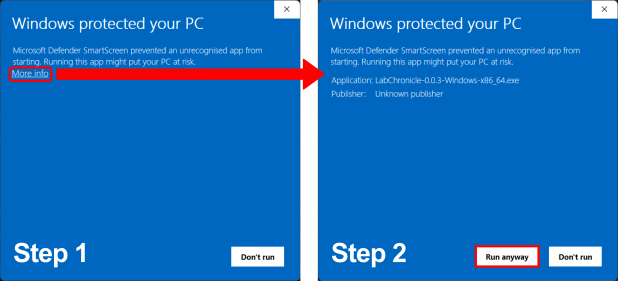
- Follow the on-screen prompts. Launch the app from the Start Menu or your desktop.
Install on a Mac
- Choose your file: open the Apple menu, then About This Mac. If the Chip or Processor says Intel, download the Intel installer; if it says M1, M2 or similar, download the Apple Silicon one.
- Double-click the
.pkgfile. If macOS refuses to open it, go to System Settings, Privacy & Security, scroll down to the message about the package and click "Open Anyway" (it appears only after you tried to open the file once). If you do not see it, try opening the file again, then check this page again. - Follow the prompts (we recommend "Install only for me"). Launch the app from your Applications folder.
Install on Linux
- Download the
.shfile. - Open a terminal in the download folder and run
bashfollowed by the name of the file you downloaded, for example:bash MyApp-0.1.0-Linux-x86_64.sh - Follow the prompts, then launch the app from your applications menu.
Update an installed app
- macOS and Windows. On macOS and Windows, update an app by uninstalling the old version first and then installing the new one: the installer does not install over an existing install. On macOS, if you already ran the new installer over the old version and it stopped or reported a failure at the end, move only the old app shortcut (for example
~/Applications/MyApp.app) to the Bin, keep the app's folder in your home folder, and run the installer again (known issue). - Linux. On Linux, running the installer with
-uupdates in place only if the previous install finished; otherwise delete<prefix>/pkgsor uninstall the app and install it again.
Where the app is listed
If the app ships tools for Napari, Fiji or QuPath, the installer registers them with LabConstrictor Tools and passes the hosts: line of the app's labconstrictor-app.yaml (the installer bundles that file). A host lists the app only if the line names it: with hosts: [notebook, napari] the app is listed in Napari, and not in Fiji or QuPath. Without the file, or without a hosts: line, the app is registered without hosts, every host lists it, and menuinst_debug.log in the install folder says so ('<app>' declares no hosts, so it is listed in every host; ...).
Next
Open the app and start working: Use notebooks after installation. If something goes wrong, see Troubleshooting an installed app.