Check the status of GitHub workflows
When you upload a notebook or make a release, GitHub Actions starts a workflow to check your code and build the installers. The template synchronization workflow additionally requires the one-time LABCONSTRICTOR_SYNC_TOKEN setup.
1. Monitor the Progress
- Go to the Actions tab in your GitHub repository.
- You’ll see a list of recent workflows. Find the one that matches your latest commit or release.
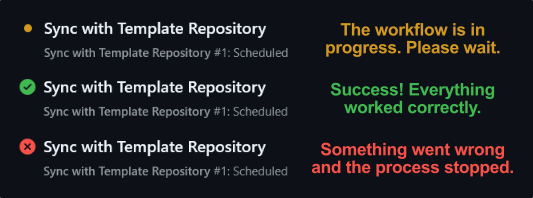
- Check the status icon next to the workflow name:
2. How to Debug a Failure
If the workflow fails, don’t worry. The system creates an error log that’s ready for you to use.
-
Download the Log:
- Click on the failed workflow run.
- Scroll down to the bottom of the page to the Artifacts section.
- Download the log file listed there (it is a plain
.logtext file, nothing to unzip).
-
Copy & Paste into AI:
- Open the log file in any text editor.
- This file is already formatted as a prompt. It includes all the context and error details you need.
- Just copy all the text and paste it into your preferred AI tool (like ChatGPT, Gemini, or Claude). The AI will explain the error and show you how to fix your notebook or
requirements.yaml.
💡 Best Practice for Large Updates
If you’re planning a big update, like changing several notebooks or adding complex dependencies, don’t push straight to the main branch.
Instead, create a new branch, make your changes there, and check that the workflows pass (✅) before merging into the main branch. This helps keep your live app working.