Enable automatic LabConstrictor template updates
LabConstrictor periodically checks the main template for improvements. When an update is available, the Sync with Template Repository workflow prepares the changes in a pull request so you can review and merge them safely.
You will need to do a one-time GitHub setup to create a token that allows LabConstrictor to update your repository. This token described below is limited to the repository you select. LabConstrictor does not need access to your other repositories.
What do I need to do?
Follow the same instructions that are given in the following video and instructions below.
Step 1: Create the synchronization token
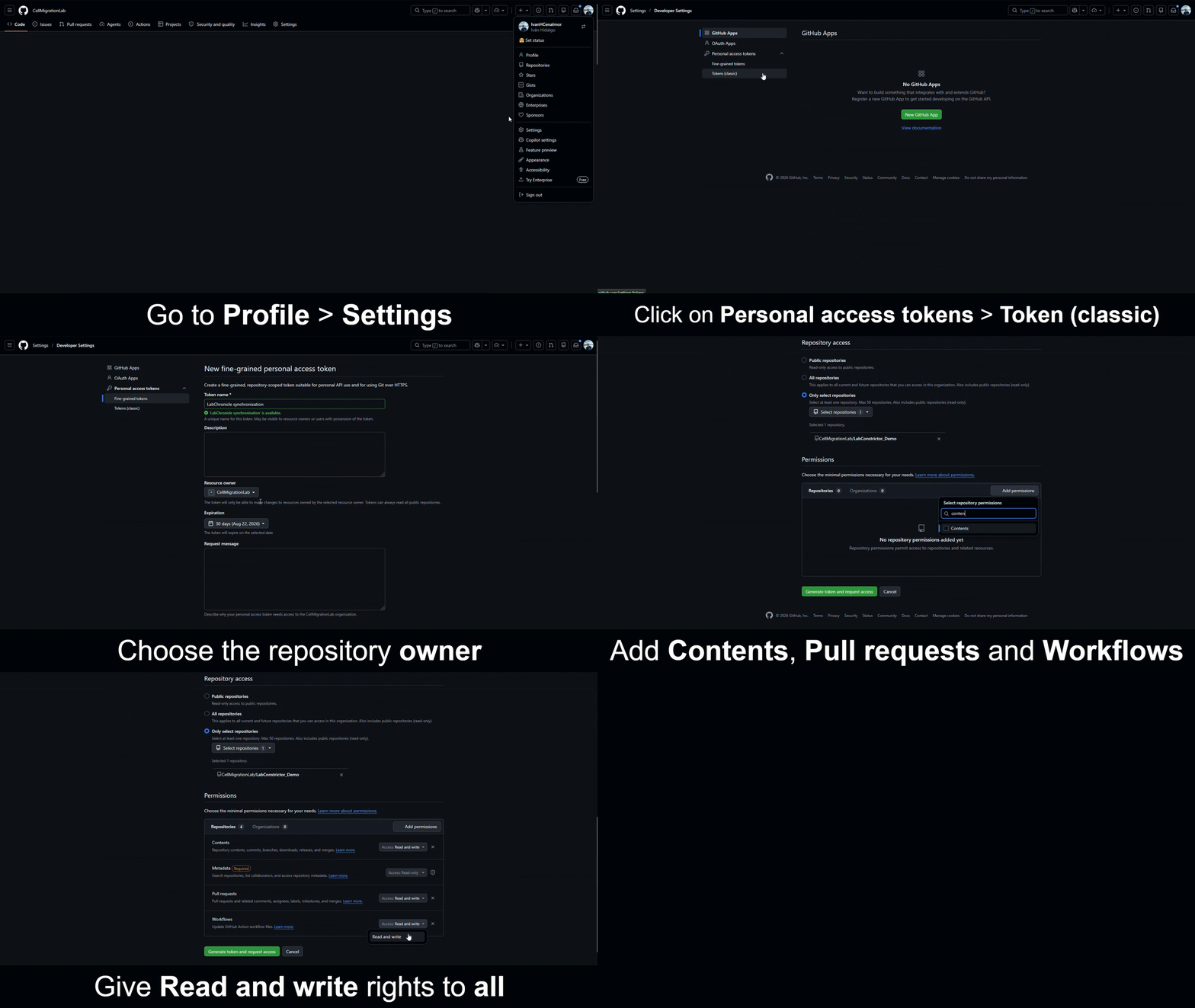
Follow steps on the GIF or click on this link and follow the steps below:
- Under Resource owner, select the owner of your LabConstrictor repository.
- Under Repository access, select Only select repositories.
- Select your LabConstrictor repository.
- Choose an expiration period that suits you. The prefilled suggestion is 365 days.
- Confirm these repository permissions: - Contents: Read and write - Pull requests: Read and write - Workflows: Read and write
- Select Generate token.
- Copy the generated token.
GitHub shows the complete token only once. Keep the page open until you have saved it in Step 2.
Step 2: Save the token as a repository secret
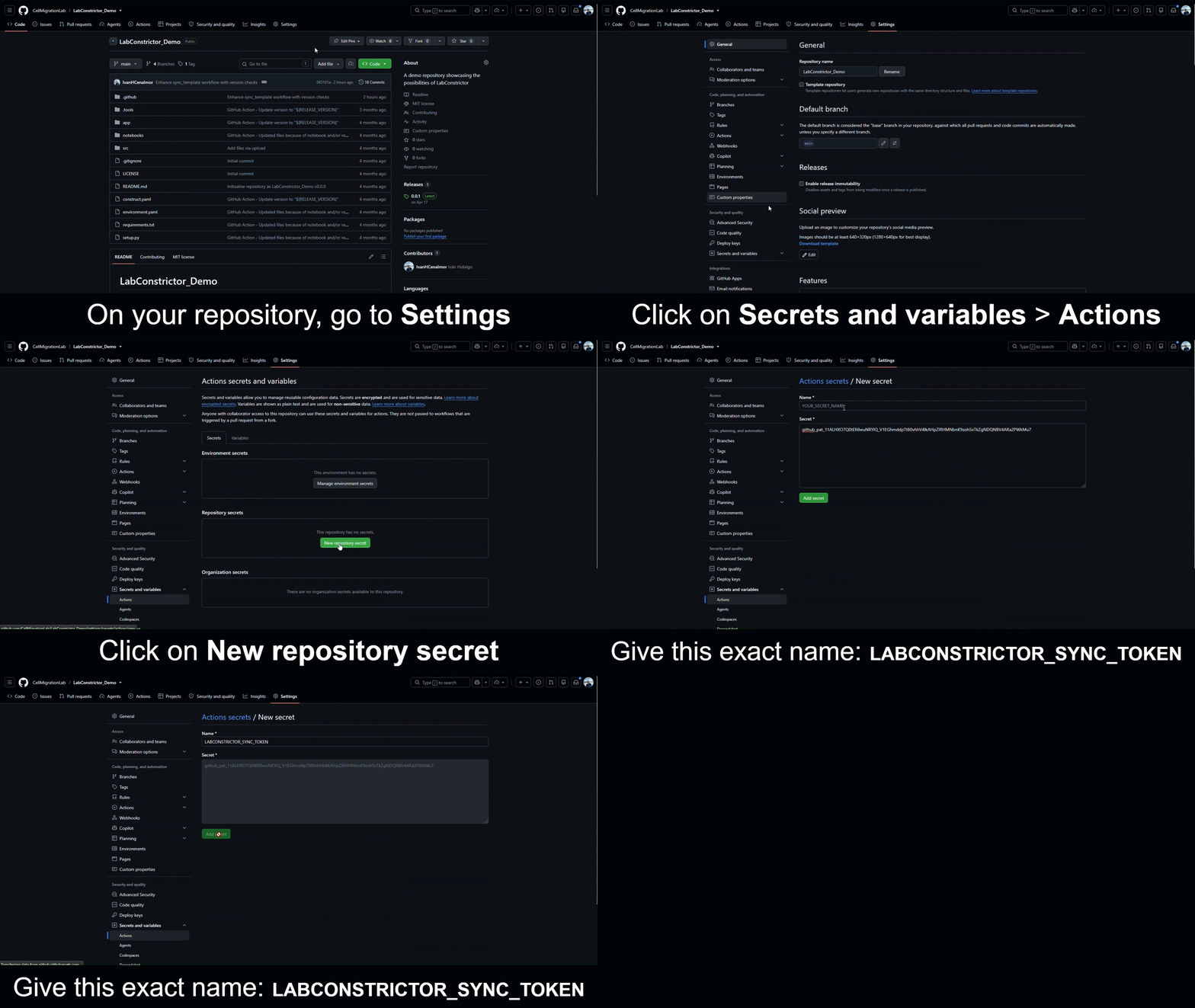
- Open your LabConstrictor repository.
- Select Settings.
- In the left sidebar, select Secrets and variables, then Actions.
- Select New repository secret.
- Enter this exact name:
text
   LABCONSTRICTOR_SYNC_TOKEN
- Paste the token into the Secret field.
- Select Add secret.
GitHub encrypts repository secrets. The token will not be displayed in the repository or in normal workflow logs.
Step 3 (situational): One-time step for repositories created before template version 0.1.12
An older synchronization workflow does not yet reference LABCONSTRICTOR_SYNC_TOKEN. If you already saw an error saying that a GitHub App cannot create or update a workflow without workflows permission, make this small edit once:
- Open
.github/workflows/sync_template.ymlin your repository. - Select the pencil icon to edit the file.
-
Copy and paste all the lines from the LabConstrictor original workflow.
-
Select Commit changes and commit directly to the default branch.
- Run Sync with Template Repository again.
The migration will then install the complete updated workflow automatically. This manual edit is only needed once for repositories whose existing workflow predates token integration.
Renewing an expired token
When the token expires:
- Create a replacement token using Step 1.
- Open Settings → Secrets and variables → Actions.
- Select
LABCONSTRICTOR_SYNC_TOKEN. - Select Update secret and paste the replacement token.
- Run synchronization again.
You do not need to edit the workflow again.