Troubleshooting an installed app
Problems with an app on your computer, after you installed it. For problems with your repository on GitHub, see Troubleshooting repository setup.
App still appears in the Windows Installed apps list after uninstalling
On Windows, it may happen that, after uninstalling the app from Settings > Apps > Installed apps as explained in the uninstalling guide, the app still appears in the list and does not allow you to uninstall it again, showing a message like:
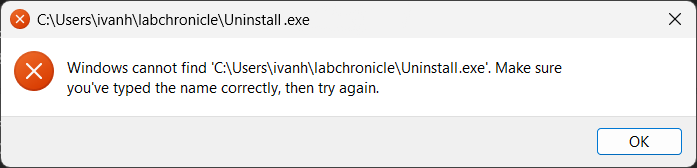
The solution is to go to the Control Panel and uninstall it from there. To do this:
- Open the Control Panel. You can search for it in the Windows search bar.
- Go to
Programs > Programs and Features. - Find the LabConstrictor-based app in the list, right-click on it, and select
Uninstall. - A message may appear saying something like: "An error occurred while trying to uninstall xxx. It might have already been uninstalled." Click
Yesto confirm.
This should remove the app even if the previous error message appears.
Windows asks for administrator rights for python.exe while uninstalling
Uninstalling an app made with template 0.1.20 or earlier may show a User Account Control prompt: "Do you want to allow this app from an unknown publisher to make changes to your device? python.exe", with the program location "<app folder>\python.exe" -m conda.core.initialize ....
The prompt is not needed. Click No. The uninstaller then shows a "Failed to clean AutoRun" error with Abort, Retry and Ignore: click Ignore. The uninstall finishes normally and nothing outside the app folder is changed. Clicking Yes does not help: the same step fails again and shows the same error, and Retry asks a second time.
Do not click Abort, even though it is the default button: it stops the uninstall halfway and leaves the app folder on disk. If that happened, run Uninstall-<AppName>.exe in the app folder again.
The cause is a conda bug in the tool that built the installer (conda/conda#16856). Installers built with template 0.1.21 or later do not have it; see migration_0_1_21.md.
The notebook fails with "No module named ..." although the installation finished
If someone once ran python -m ipykernel install --user on the computer (common with Anaconda or pip setups), Jupyter has a personal "python3" kernel in the user's folder (~/.local/share/jupyter/kernels/python3 on Linux, ~/Library/Jupyter/kernels/python3 on macOS, %APPDATA%\jupyter\kernels\python3 on Windows). Apps made with template 0.1.23 or earlier then run their notebooks in that other Python, and the first cell that imports the app fails with ModuleNotFoundError: No module named '<app>'.
Install a release made with template 0.1.24 or later: its launcher always uses the app's own kernel. Until then, removing that personal kernel folder also works, but it affects the other Jupyter installations that use it. See migration_0_1_24.md.
JupyterLab does not start because Windows reports an ASN.1 certificate error
LabConstrictor-based installers include a TLS-resilient launcher. It attempts native operating-system certificate verification before JupyterLab imports Tornado and provides a verified CA-bundle fallback when a malformed Windows certificate-store entry cannot be parsed. SSL and hostname verification are never disabled.
The constructor environment intentionally does not include
pip-system-certs. Its automatic Python startup hook can fail before the
application launcher has an opportunity to select the verified fallback.
Post-install pip commands instead use an explicit CA bundle while preserving
certificate verification.
Diagnostic information is written to launcher_debug.log and
menuinst_debug.log in the installation directory. Maintainers can run the
same preflight used by the installer with:
<installation-prefix>\python.exe <installation-prefix>\PROJECT_NAME\launch_jupyter.py --self-test
The self-test reports the project-specific CA override variable. It is derived
from the application name by replacing punctuation and spaces with underscores
and converting it to uppercase, for example MY_PROJECT_CA_BUNDLE. All
LabConstrictor-based applications also accept the shared
LABCONSTRICTOR_CA_BUNDLE variable. Set either variable to an organization PEM
bundle before installation or launch when a private certificate authority is
required.