LabConstrictor Playground
Check that a computer, an installation and its GPU are in order, and that every LabConstrictor feature works.
Utility napari plugin: experimental
 Fiji plugin: experimental
 QuPath plugin: experimentalTesting
About
Press "Check everything" to get a readout of your machine, GPU, PyTorch, a short benchmark and the internet connection, plus a report you can attach to an issue. Developers use its tools as a fixed set of cases for the napari, Fiji and QuPath bridge.
Works with
The authors say it works with:
- Run a small test on a device: the device chosen in a dropdown (cpu, cuda:0, mps, whatever PyTorch can use here)
- Feature tour: an image, or none to use a built-in demo image
- Look inside a file (a text or JSON file) or summarise a table (a CSV)
- Count the pixels above a level (a level that another setting switches on)
- Area of the bright region (needs the pixel size, never guesses it)
- Align the centres of two images (returns a 3x3 transform)
Produces
The authors say it produces:
- A readout with a tick, a warning or a cross per layer, with what to do beside each cross
- report.json (to attach to an issue) and summary.txt, plus benchmark.png when there is a benchmark
- Make test data: small files made from a seed (a 3-channel image, an RGB image, labels, a time-lapse, a table of points)
Get it on your computer
Install the app on your own computer: download the installer for your system, and the steps for that system open below the buttons. You do this once; installing needs an internet connection, because the installer downloads the app's Python packages.
v0.0.6 · 12 November 2026 · files come from github.com/CellMigrationLab/LabConstrictor-Playground/releases
Windows
Windows installer313.7 MB · .exeInstallers built with LabConstrictor are not code-signed yet, so Windows may warn you. Run files only from this app's GitHub release. See the Windows steps.
macOS
Apple Silicon (M1 or later)189.1 MB · .pkgNot sure which? Open the Apple menu, then About This Mac: Intel means Intel, M1 or later means Apple Silicon. If macOS refuses to open it, see the macOS steps.
Linux
Linux installer224.0 MB · .shNeeds a terminal. Run it with: bash <file name>. See the Linux steps.
These installers are for Windows, macOS and Linux computers.
How to install on Windows
- Download the
.exefile and double-click it. -
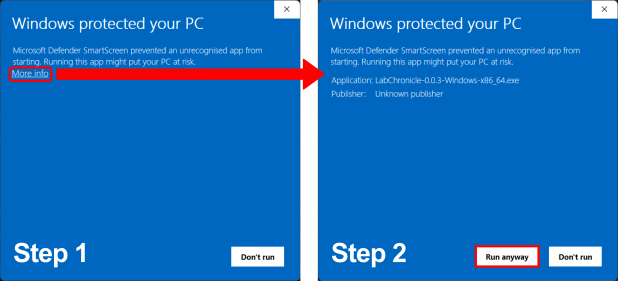
If Windows shows "Windows protected your PC", click "More info" and then "Run anyway". The installers are not code-signed yet.
-
Follow the on-screen prompts. Launch the app from the Start Menu or your desktop.
How to install on macOS
- Choose your file: open the Apple menu, then About This Mac. If the Chip or Processor says Intel, download the Intel installer; if it says M1, M2 or similar, download the Apple Silicon one.
- Double-click the
.pkgfile. If macOS refuses to open it, go to System Settings, Privacy & Security, scroll down to the message about the package and click "Open Anyway" (it appears only after you tried to open the file once). If you do not see it, try opening the file again, then check this page again. - Follow the prompts (we recommend "Install only for me"). Launch the app from your Applications folder.
How to install on Linux
- Download the
.shfile. - Open a terminal in the download folder and run
bashfollowed by the name of the file you downloaded, for example:bash MyApp-0.1.0-Linux-x86_64.sh - Follow the prompts, then launch the app from your applications menu.
All systems, with pictures: Install an app.
Using it
- Install it like any LabConstrictor app and press Check everything
- Read the answer: a tick is fine, a warning works but something will bite later, a cross is broken and the line below says what to do
- Attach report.json to an issue
- The tools also appear in napari (Plugins > LabConstrictor tools) and Fiji (Plugins > LabConstrictor > LabConstrictor Tools...)
For any LabConstrictor desktop app: after installing, open the app from the Start menu (Windows), the Applications folder (macOS) or your applications menu (Linux). A terminal window opens with it: keep it open while you work. Its Welcome notebook lists the app's notebooks; the notebook usage guide shows how to work with it.
Read more: README on GitHub.
Limitations
The authors say:
- OpenCL on macOS is deprecated by Apple, and ROCm (AMD) works on Linux only
- This first version checks PyTorch only; TensorFlow is checked inside the apps that use it
All downloads
Every installer of version 0.0.6 (5 files, with checksums)
Released 12 November 2026. Files come straight from the app's GitHub release.
| System | Format | Size | File | SHA-256 (from GitHub) |
|---|---|---|---|---|
| Linux 64-bit (x86_64) | .sh | 224.0 MB | LabConstrictorPlayground-0.0.6-Linux-x86_64.sh | 480b3298aab76a08d583c0877480d712f5e414850efb1bb56b0e3fca1767b941 |
| macOS (Apple Silicon) | .pkg | 189.1 MB | LabConstrictorPlayground-0.0.6-MacOSX-arm64.pkg | 26709eccf181ef9b8e82e59e4277a7c36f256a10805aacd6e6d7fc2c47f30e9f |
| macOS (Apple Silicon) | .sh | 189.8 MB | LabConstrictorPlayground-0.0.6-MacOSX-arm64.sh | 89a943bc2ca33b14dad5257dc8594133990f962cbe1b518de41e9501c06a9fe6 |
| Windows 64-bit (Intel/AMD, x86_64) | .exe | 313.7 MB | LabConstrictorPlayground-0.0.6-Windows-x86_64.exe | f4b2df9dbcb79a2a7d3ce61c4e8d13eecf7dafc072a919a76eaf0def0d8040e7 |
| Windows 64-bit (Intel/AMD, x86_64) | .msi | 312.9 MB | LabConstrictorPlayground-0.0.6-Windows-x86_64.msi | 3247214dfcc03823c7066bd1255ff11dbef8e65948d9be5d7230e550886d8658 |
Details
- Kind
- Utility
- Development status
- Available
- Latest release
- v0.0.6 · 12 November 2026
- License
- MIT
- Repository owner
- CellMigrationLab
- Also in (plugins)
- napari plugin: experimental Fiji plugin: experimental QuPath plugin: experimental
- Topics
- diagnostics, testing
- Links
- Report a problem