
VLab4Mic
A virtual lab to simulate fluorescence microscopy images, from molecular structures to acquisition, with no coding.
Simulation napari plugin: experimental
 Fiji plugin: experimental
About
Build virtual samples from molecular structures, apply fluorescent labelling and simulate image acquisition across microscopy modalities, before stepping into the microscope room.
This is the desktop installer distribution of VLab4Mic. Two of its tools also run in napari and Fiji.
Works with
The authors say it works with:
- Molecular structures: choose a PDB ID or provide a .cif/.pdb file; configure probe, labelling and acquisition
- Image comparison: a reference and simulated 2D image with their pixel sizes (napari/Fiji tools)
Produces
The authors say it produces:
- Simulated and noiseless fluorescence microscopy images, with their pixel size reported
- Image comparison scores (SSIM and Pearson correlation) when using the comparison tool
Get it on your computer
Install the app on your own computer: download the installer for your system, and the steps for that system open below the buttons. You do this once; installing needs an internet connection, because the installer downloads the app's Python packages.
v0.1.7 · 15 October 2026 · files come from github.com/CellMigrationLab/LabConstrictor-VLab4Mic/releases
Windows
Windows installer307.0 MB · .exeInstallers built with LabConstrictor are not code-signed yet, so Windows may warn you. Run files only from this app's GitHub release. See the Windows steps.
macOS
Apple Silicon (M1 or later)181.1 MB · .pkgIntel189.2 MB · .pkgNot sure which? Open the Apple menu, then About This Mac: Intel means Intel, M1 or later means Apple Silicon. If macOS refuses to open it, see the macOS steps.
Linux
Linux installer215.6 MB · .shNeeds a terminal. Run it with: bash <file name>. See the Linux steps.
These installers are for Windows, macOS and Linux computers. You can also open a notebook in your browser below.
How to install on Windows
- Download the
.exefile and double-click it. -
If Windows shows "Windows protected your PC", click "More info" and then "Run anyway". The installers are not code-signed yet.
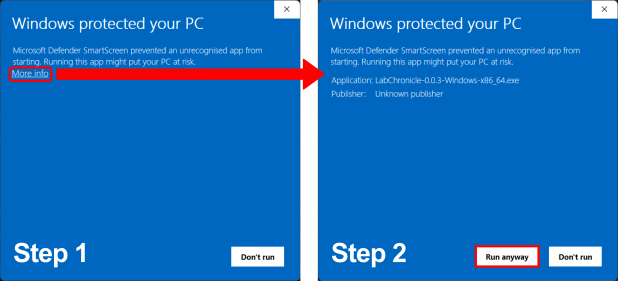
-
Follow the on-screen prompts. Launch the app from the Start Menu or your desktop.
How to install on macOS
- Choose your file: open the Apple menu, then About This Mac. If the Chip or Processor says Intel, download the Intel installer; if it says M1, M2 or similar, download the Apple Silicon one.
- Double-click the
.pkgfile. If macOS refuses to open it, go to System Settings, Privacy & Security, scroll down to the message about the package and click "Open Anyway" (it appears only after you tried to open the file once). If you do not see it, try opening the file again, then check this page again. - Follow the prompts (we recommend "Install only for me"). Launch the app from your Applications folder.
How to install on Linux
- Download the
.shfile. - Open a terminal in the download folder and run
bashfollowed by the name of the file you downloaded, for example:bash MyApp-0.1.0-Linux-x86_64.sh - Follow the prompts, then launch the app from your applications menu.
All systems, with pictures: Install an app.
Notebooks to open in your browser
These run on Google's servers in Google Colab: you need an internet connection and a Google account, and any data you load into the notebook is handled by Google. The desktop app runs on your computer.
- Build and image a virtual sample
 Open in ColabView on GitHub
- Parameter sweepsOpen in ColabView on GitHub
Using it
- Install and launch VLab4Mic, then open the Welcome dashboard in JupyterLab
- Open VLab4Mic_main to select a molecular structure, fluorescent probe and imaging modality
- Run the acquisition and inspect the simulated and noiseless images
- Use VLab4Mic_parameter_sweeps when you need to compare multiple parameter combinations
For any LabConstrictor desktop app: after installing, open the app from the Start menu (Windows), the Applications folder (macOS) or your applications menu (Linux). A terminal window opens with it: keep it open while you work. Its Welcome notebook lists the app's notebooks; the notebook usage guide shows how to work with it.
Read more: Documentation.
Limitations
The authors say:
- The napari and Fiji tools return one frame; multi-frame runs, parameter sweeps and advanced probe design require notebooks
- In the default 1000 nm field a widefield image at 100 nm per pixel has only 10 x 10 pixels; raise Sample size XY
How to cite
The authors give this publication to cite: doi:10.64898/2026.06.02.729521
Name the version you used (latest release: v0.1.7 · 15 October 2026).
All downloads
Every installer of version 0.1.7 (7 files, with checksums)
Released 15 October 2026. Files come straight from the app's GitHub release.
| System | Format | Size | File | SHA-256 (from GitHub) |
|---|---|---|---|---|
| Linux 64-bit (x86_64) | .sh | 215.6 MB | VLab4Mic-0.1.7-Linux-x86_64.sh | 24400dd256c92d53c9450b637caa242d80accf0d418c5e59ce56155d58de4106 |
| macOS (Apple Silicon) | .pkg | 181.1 MB | VLab4Mic-0.1.7-MacOSX-arm64.pkg | 42300a6ca29685f3ac659a70921f7b64c50fbf1538b5ce2d7a68176ce57fe549 |
| macOS (Apple Silicon) | .sh | 181.2 MB | VLab4Mic-0.1.7-MacOSX-arm64.sh | d8e93e0cb47db0aed1bab06dd90235f550b8bb0513598acf4e031fc9b16090df |
| macOS (Intel) | .pkg | 189.2 MB | VLab4Mic-0.1.7-MacOSX-x86_64.pkg | e6bf21f77ba1485858c09ce5e7a821fd197879793b9804eac797a60dd163a63e |
| macOS (Intel) | .sh | 189.2 MB | VLab4Mic-0.1.7-MacOSX-x86_64.sh | e7e2e8e6f85c36e6ee3b10787dd895ad8a837c43e0996413914a4611aa91618b |
| Windows 64-bit (Intel/AMD, x86_64) | .exe | 307.0 MB | VLab4Mic-0.1.7-Windows-x86_64.exe | 18bc4143c5f3cccb752b8d51afd89d270d326e3138277acfbb7c2a1c277fa367 |
| Windows 64-bit (Intel/AMD, x86_64) | .msi | 304.9 MB | VLab4Mic-0.1.7-Windows-x86_64.msi | df7aa0efd889aeeb865cac8714aa16de34d329eb363d7d4e040cd82629164ec7 |
Details
- Kind
- Simulation
- Development status
- Not stated by the authors
- Latest release
- v0.1.7 · 15 October 2026
- License
- MIT
- Repository owner
- CellMigrationLab
- Also in (plugins)
- napari plugin: experimental Fiji plugin: experimental
- Topics
- microscopy simulation, experiment design
- Links
- Homepage · Documentation · No issue tracker on GitHub